Google Nest Hub Max Setup: The Ultimate Smart Home Guide
+
Table of Contents
- 1 What You Need Before Setup
- 2 Google Home App: The Main Setup Tool
- 2.1 Google Home App Features
- 2.2 Google Nest App: When Is It Needed?
- 2.3 Step-by-Step Google Nest Hub Max Setup
- 2.3.1 1. Locate a Good Spot and Plug It In
- 2.3.2 2. Google Home App
- 2.3.3 3. Add Device
- 2.3.4 4. Choose Wi-Fi
- 2.3.5 5. Choose Home and Room
- 2.3.6 6. Adjust and Customize
- 2.3.7 7. Control Other Devices
- 2.4 Matter and Google Nest Hub Max
- 3 Features and Benefits
- 4 Conclusion
A smart home makes household chores, errands, and tasks easier and more fun. From controlling household lights to checking in on your kids to watching cook-alongs, a smart display helps you manage your connected home. For several households in the U.S., the process of creating their first smart home, powered by Google, begins with the Google Nest Hub Max.
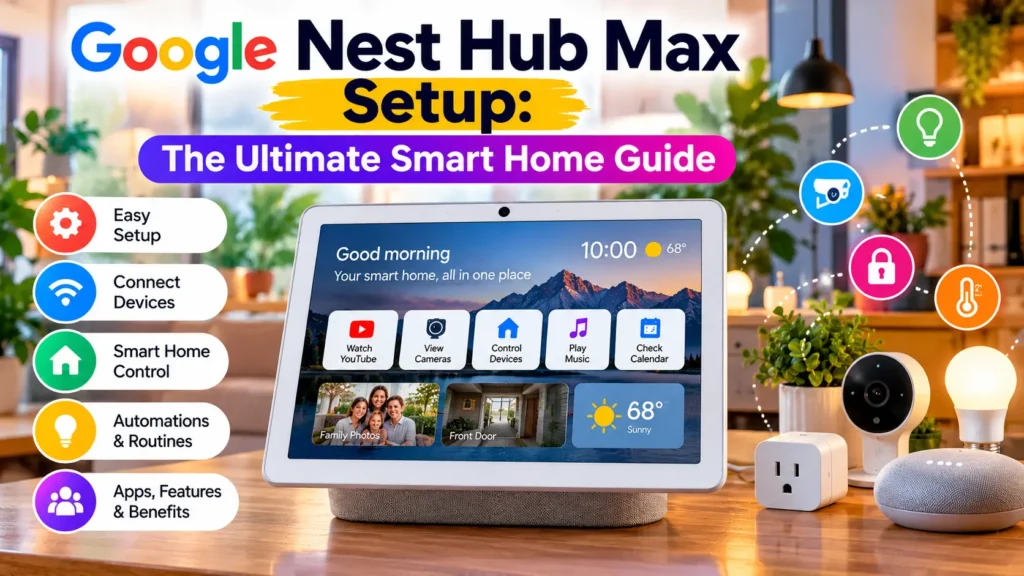
With its 10-inch high-definition display, speakers, a built-in Nest camera, and Google Assistant, the Nest Hub Max provides several entertainment and home automation features. The device can take hundreds of thousands of commands to control and manage thousands of compatible smart home devices.
What You Need Before Setup
There are a few things you need prior to setting up your Google Nest Hub Max.
- A Google account
- A working Wi-Fi connection
- An Android or Apple phone
- The Google Home app
- The Google Nest Hub Max
- Compatible smart home devices (if you wish to connect them)
- Manufacturer apps (if applicable)
Google asks that your mobile device run either Android 9 or higher, or iOS 17 or higher.
Setting up the Nest Hub Max may be easier if the device is moved closer to your Wi-Fi router. According to Google, a distance of 15 to 20 feet from the router is ideal.
Google Home App: The Main Setup Tool
The Google Home app is essential for the setup of the Google Nest Hub Max. It is used to link the device to a user’s account and location, add and edit device groups, create and edit routines, and control connected smart devices.
Google Home App Features
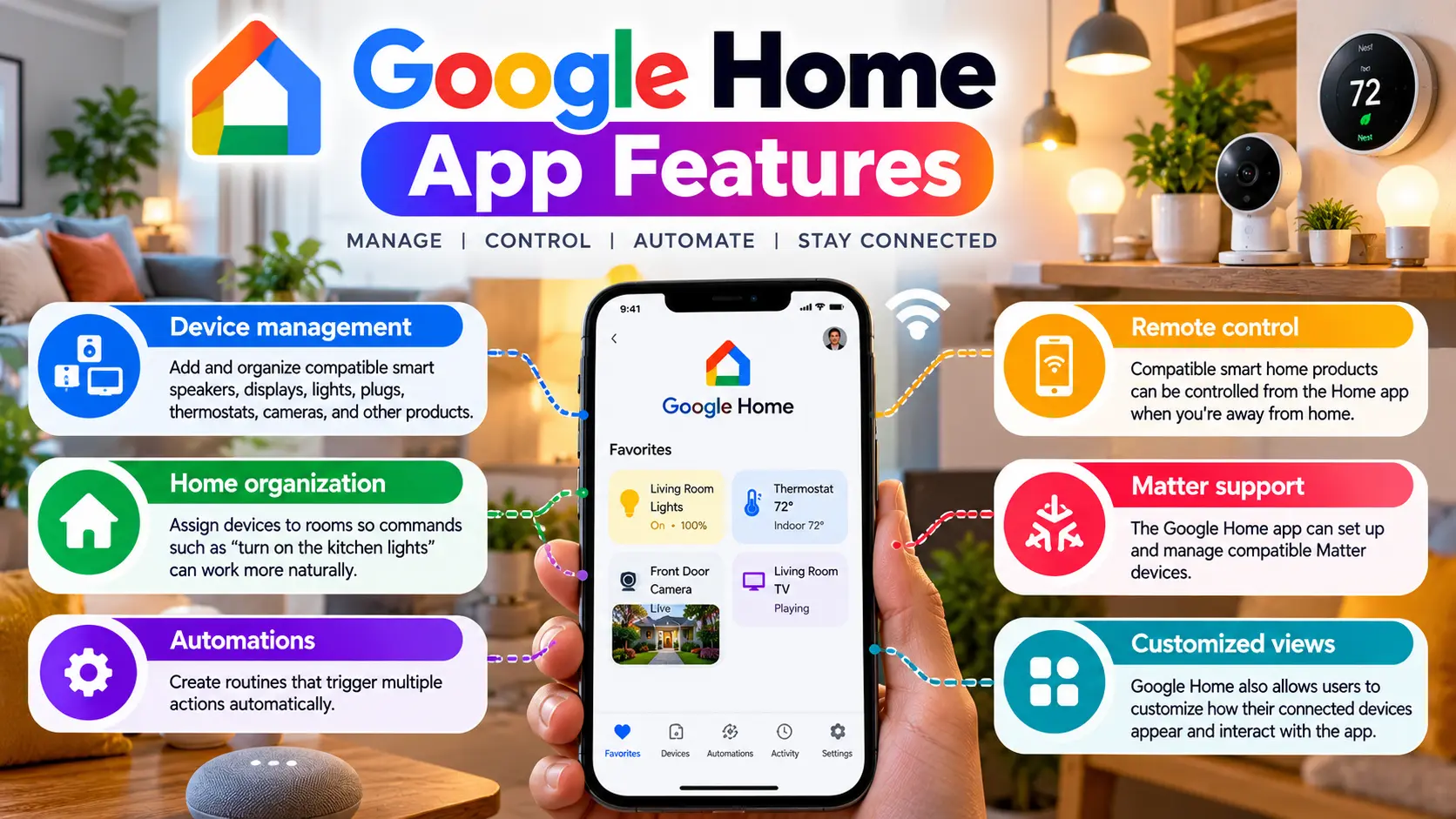
Device management: Add and organize compatible smart speakers, displays, lights, plugs, thermostats, cameras, and other products.
Home organization: Assign devices to rooms so commands such as “turn on the kitchen lights” can work more naturally.
Automations: Create routines that trigger multiple actions automatically.
Remote control: Compatible smart home products can be controlled from the Home app when you’re away from home.
Matter support: The Google Home app can set up and manage compatible Matter devices.
Customized views: Google Home also allows users to customize how their connected devices appear and interact with the app.
Also Read: Samsung Galaxy Watch8 Classic vs. Watch7: Is the Upgrade Worth It?
Google Nest App: When Is It Needed?
The Nest app is a separate app from the Google Home app. Many of Google’s more recent Nest devices also allow connection and control via the Google Home app. Some of Google’s older and legacy Nest devices may still require the Nest app.
It is important to be aware of this when connecting Nest devices to a user’s account and home.
Step-by-Step Google Nest Hub Max Setup
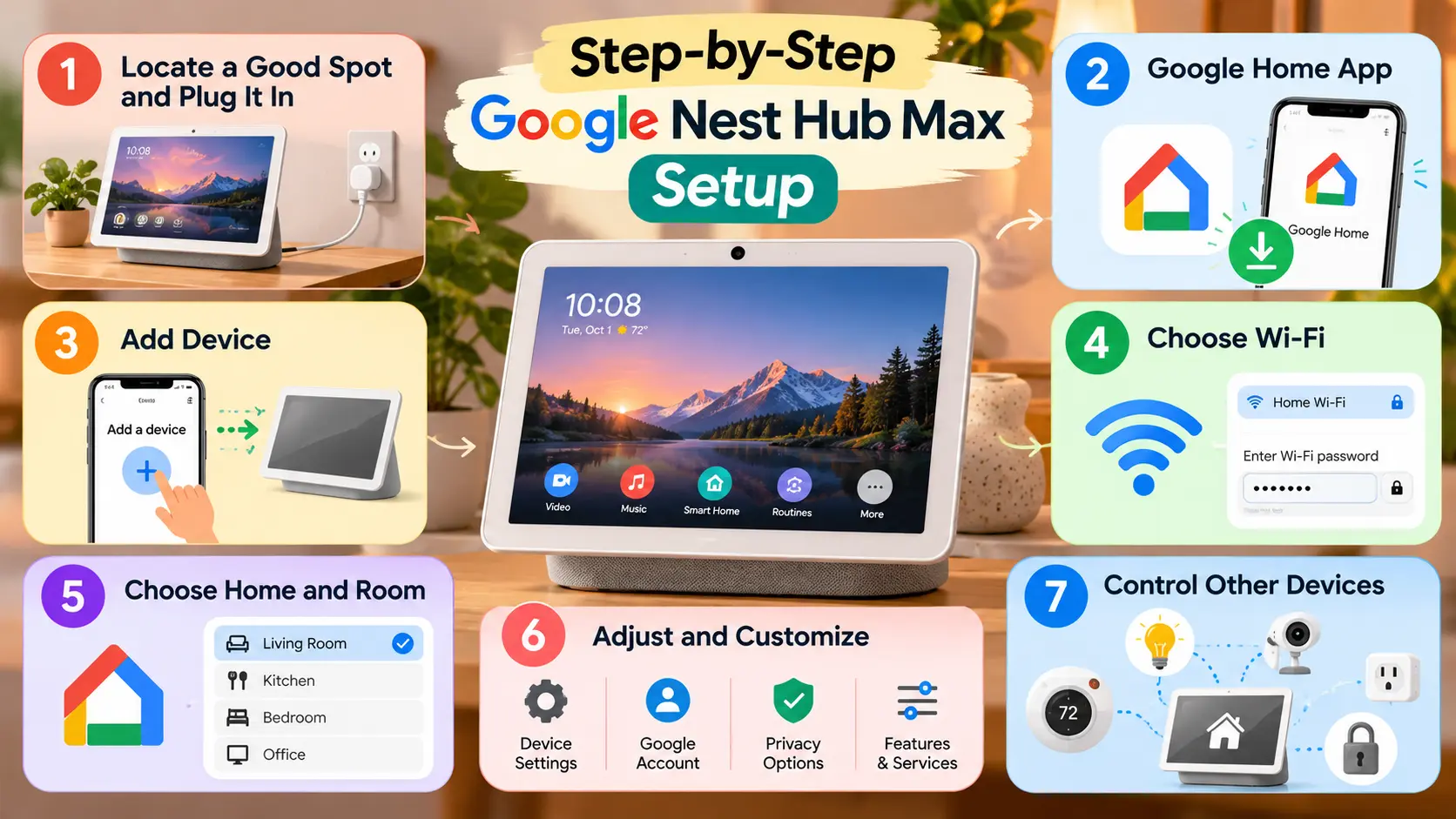
The Google Nest Hub Max is easy to set up.
1. Locate a Good Spot and Plug It In
Look for a good spot where your Nest Hub Max will have a good view of your Google Home Wi-Fi. The Nest Hub Max can be placed in a similar spot as the Google Nest Hub (i.e., kitchen, living room, bedrooms, etc.)
2. Google Home App
You will need to have or download the latest version of the Google Home App on your mobile device.
3. Add Device
With the Google Home App, you will be prompted to add a device. This will walk you through the process of adding your Nest Hub Max.
4. Choose Wi-Fi
During the setup, you will be prompted to choose your home Wi-Fi. Your device will ask for the Wi-Fi password.
5. Choose Home and Room
After the Nest Hub Max is connected to your home’s Wi-Fi, you will be asked to choose the room the device will be located in. This will make it easier to give device-related commands to your Nest Hub Max.
6. Adjust and Customize
After the basics are set up, you have the option to adjust settings for supported features and services.
7. Control Other Devices
When your Nest Hub Max is connected to Google Home, you will be able to control your other compatible smart devices.
Matter and Google Nest Hub Max
The Nest Hub Max supports Google’s Matter and Thread technology. As a result, Matter-connected devices can communicate with Google Home devices through the Nest Hub Max. Thread-connected devices can use the Nest Hub Max to connect to the Thread network.
Google states that a Thread-based Matter device needs a Thread Border Router to fully communicate with the Thread network. All Matter devices on the network can then communicate with each other.
Features and Benefits
The Google Nest Hub Max Setup unlocks several useful features beyond basic voice commands.
| Feature | What It Does | Main Benefit |
|---|---|---|
| 10-inch HD display | Shows videos, photos, information, and controls | Easy visual interaction |
| Google Assistant | Responds to voice commands | Hands-free control |
| Smart home dashboard | Controls compatible devices | Centralized management |
| Nest Cam | Provides a live view of your home | Convenient home monitoring |
| Google Photos | Displays selected photos | Digital photo frame |
| YouTube | Plays videos and tutorials | Entertainment and learning |
| Music services | Plays supported streaming services | Hands-free listening |
| Automations | Performs scheduled or triggered actions | Saves time |
| Matter support | Connects compatible Matter devices | Broader interoperability |
| Voice Match | Provides personalized experiences | Individualized results |
The Nest Hub Max can also support video calls, personalized calendars, Google Photos, YouTube, YouTube TV, and multiple music services. Some services require separate subscriptions.
Smart Home Automations Worth Trying
Once you finish setting up the Google Nest Hub Max, you can set up automations to really customize the device to your liking.
Automations can incorporate many different features of the device. For example, you can create an automation to display the weather, calendar information, reminders, and/or news in the morning. You can create an automation to control the lights in your house and other connected devices in your house to turn them off when you go to bed.
You can create similar automations to control connected devices in your house based on your activity. Google Home’s app lets users manage connected devices and create automations.
Also Read: Best Drones Under $500 in 2026: Ultimate USA Picks
Common Setup Problems
First, make sure that your Nest Hub Max is connected to the internet. You can also make sure that the Google Home app is up to date. Some users also reported that they had to update their phone’s operating system to fix connectivity issues.
If the Nest Hub Max is not connecting to your other smart home devices, you may have to change your settings in the device’s app. You also may have to change your Matter settings.
If the Nest Hub Max is having trouble connecting to other devices, you may have to scan a new QR code. Nest Hub Max provides several options to set the device up manually if scanning a QR code does not work.
You can control the camera and other settings on the Nest Hub Max to protect your privacy. The microphone can also be turned off. You can control how the device learns about you, and how the device interacts with you.
Privacy Considerations
The Nest Hub Max is similar to the other Nest Hubs with one major addition: a camera. Given the presence of a camera, it is important to look at the available privacy settings. The available camera settings are a start, but to feel more secure, it is important to review the microphone, camera, personalization, and activity settings.
The Nest Hub Max, like other Nest devices, includes a built-in camera that supports the Nest Cam feature. This allows you to take a live view of your connected camera. Other camera features require a subscription or different settings and may vary.
Conclusion
Google Nest Hub Max is the leading smart display in the marketplace due to its large 10” HD touchscreen. It functions as a smart speaker and controller for hundreds of smart home devices. It provides video calls, shows entertainment, and provides security with the Nest Cam. With Matter integration, Google Nest Hub Max can be the commander of all smart home devices in the home.
In USA households, starting with Google Nest Hub Max and adding other compatible Matter/Works with Google Home devices can result in a polished smart home system. The user is required to verify the device’s compatibility with the Google Home system. The user should also update the Google Home App and related devices to ensure seamless integration.
FAQs
-
Is the setup of Google Nest Hub Max difficult?
The basic setup of Google Nest Hub Max is relatively simple as it only requires the user to connect to Wi-Fi via the Google Home App.
-
Is the Google Home App necessary?
Yes, for setting up and using the Google Nest Hub Max, the Google Home App is necessary. The app can also be used to integrate other compatible smart home devices.
-
Does the Nest Hub Max work with Matter?
Nest Hub Max is listed by Google as a Matter controller and Thread Border Router.
-
Does it work with other smart devices?
Yes. You can control supported smart devices with Google Home. To control Matter devices you can do so within the Google Home app. You may need to use the manufacturer’s app to control non-Matter devices first.
-
Will it control smart plugs?
Yes. You can control smart plugs through Google Home.
-
Is a Google Account needed?
Yes. You will need a Google Account to use the Google Home App to control smart devices and to set up other Google devices.